CapCut vs InShot Which Video Editor Is Better?
CapCut vs InShot is an everyday question among the people that would like to edit their videos using their phones. Both apps are popular. Both are easy to use. But the truth is that they are designed to appeal to somewhat different types of users.
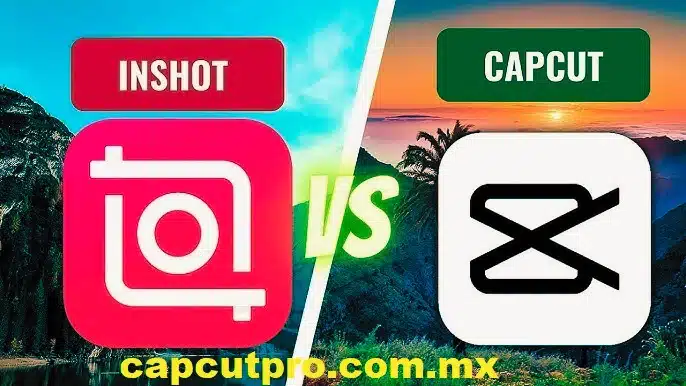
Novices are often confused with the selection of a video editing application. There are those who desire quick editing of social media. Other people desire increased control and creativity. That is why the knowledge about CapCut vs InShot can assist you in choosing the appropriate application. And the good thing is that you can never go wrong with either. Nevertheless, every application is powerful and has its minor limitations. We can just compare them step by step in very simple words.
CapCut vs InShot Which App Is Easier for Beginners
Both applications are user-friendly when we refer to ease. But CapCut vs InShot feels different from the first touch. InShot has a very simple home screen. You choose video, photo, or collage, and start editing quickly.
The main menu of CapCut is more options. It may look a bit busy at first. But after a few minutes, you understand where tools are. Beginners who like simple layouts may feel more relaxed with InShot in the beginning.
Editing Timeline and Controls
InShot has a simple timeline with simple controls. It is easy to cut, separate and rearrange clips. The buttons are large and distinct hence not confusing to new users. Simple cutting tools are also provided in CapCut; however, additional advanced tools are placed on the same screen. This is great for users who want to grow their skills without changing apps later.
Text and Sticker Tools Comparison
InShot is known for fun text styles and stickers. Instagram stories and short reels are extremely popular on it. It is simple to add emojis, shapes, and animated text. CapCut also has text and stickers, but with more animation control. If you want moving text that follows objects or appears with effects, CapCut gives more creative freedom.
Features Comparison CapCut vs InShot
In the feature battle between CapCut and InShot, the two apps have filters, effects and transitions. Both applications allow changing colors, adding music, and slow motion. However, CapCut usually offers a larger library of effects. Many trendy social media effects appear there first. InShot focuses more on simple, clean tools that work fast.
Advanced Tools in CapCut
CapCut is stronger when we talk about advanced features. It supports keyframes, which allow movement of text and objects. It also has motion tracking and green screen tools. These features help creators make more cinematic videos. People who want YouTube content or creative edits often prefer CapCut Pro because of these tools.
Special Features in InShot
InShot shines in quick editing. It has easy background blur for vertical videos. One tap and you can resize videos to other social platforms. This will save time to those who post mostly on Instagram or Tik Tok. InShot does not use too many complicated settings and makes it simple and fast.
Performance and Device Compatibility
The two apps are compatible with numerous devices, however, the performance may vary. CapCut vs InShot on older phones can prove that InShot is a little more comfortable to use since it does not have so many heavy features. CapCut is slightly larger in size. It may need more storage and processing power. On newer phones, both apps run smoothly without big problems.
Editing on Different Platforms
CapCut for Android works well and is updated often. Many Android users like its wide feature set and smooth timeline control. Apple users enjoy CapCut for iOS because it runs smoothly with good performance. InShot also works on iPhones, but CapCut’s updates sometimes bring more new tools.
Desktop Editing Experience
One big difference in CapCut vs InShot is desktop support. CapCut for PC allows users to edit on a big screen with mouse and keyboard. This is helpful for longer and detailed projects. CapCut is also available to Mac users. InShot primarily targets mobile editing, and therefore, desktop users tend to transfer to CapCut to have more control.
Export Quality and File Size
The two apps can be exported in high resolution such as 1080p. CapCut vs InShot quality in exporting is good in both although occasionally CapCut has more options of frame rate. File size depends on resolution and bitrate. CapCut gives slightly more control in export settings, which helps advanced users manage quality and size balance.
Free vs Paid Features
The two apps can be exported in high resolution such as 1080p. CapCut vs InShot quality in exporting is good in both although occasionally CapCut has more options of frame rate. CapCut offers many features for free and often exports without watermark. That is one reason many beginners start with CapCut before trying paid tools.
Safety and Download Sources
Some people search for CapCut Pro APK to unlock premium features. But downloading from unknown sites can be risky. These files may harm your device. You may also see CapCut Mod APK versions online. These modified apps are not safe and can steal data. It is better to use official app stores.
Links like CapCut Pro APK Download or CapCut Pro APK Download Latest Version may look tempting. Still, unofficial sources are dangerous. Always choose official downloads. Some users try CapCut Old Version for slow devices. The outdated ones can be compatible with weak phones but lack updates on security and new features.
When to Choose CapCut
Choose CapCut if you want more creative control. It is better for advanced editing, green screen, motion effects, and detailed timeline work. It is also a good choice if you plan to grow your editing skills. You can start simple and slowly try advanced tools without changing apps.
When to Choose InShot
InShot is the tool to use when you want to make fast and easy edits. It suits the short social media videos with simple cuts, text, and music. InShot is also more comfortable and lightweight on a variety of phones, in case you do not want such a variety of options and just need a quick solution.
Final Verdict CapCut vs InShot
CapCut vs InShot is not about which app is perfect. It is about what you need. CapCut gives more advanced tools and creative power. InShot gives speed and simplicity. Both applications are user-friendly. Another better long-term option is CapCut in case you want to expand to high-end editing. InShot is quite comfortable in case you desire quick editing of daily posts. You can even use both. Most of the creators utilize InShot to make short shots and CapCut to make larger projects. In that case, you have it both ways.
Conclusion
CapCut vs InShot depict two excellent applications with varying capabilities. One of them is dedicated to high-end creative features, one to straightforward and quick editing. It is up to you depending on your style and objectives. We made a comparison in terms of ease of use, features, performance, quality of exports, and safety. Every minor difference will allow you to choose the most suitable app to use in your everyday work.
The only way to go is honestly to try both. Take a few days to use each of the apps and which one appears to be in your hands. Ultimately, it is up to you between CapCut vs InShot. Choose the one that suits your comfort, creative and editing requirements and begin producing great videos today.
FAQs
1. Which is better for beginners CapCut or InShot
Both are beginner friendly. InShot is less complex at the beginning whereas CapCut provides more features. Novices seeking to make fast edits can use InShot, whereas CapCut can be used in the long term.
2. Does CapCut have more effects than InShot
Yes, CapCut tends to possess more effects and more sophisticated features such as keyframes and motion tracking. InShot is more concentrated on the simple and quick editing capabilities.
3. Can I use CapCut on a computer
Yes, CapCut is a computer program too. You are able to edit on a larger screen with keyboard and mouse which proves to be useful when undertaking longer or more detailed projects.
4. Is InShot good for YouTube videos
Yes, one can use InShot with YouTube videos, simple ones in particular. However, more sophisticated effects and editing are required, in which case some creators use CapCut instead.
5. Are mod versions of editing apps safe
No, mod versions are not safe. They can be malicious files or rob data. Only the official app stores should be downloaded.
6. Which app exports higher quality videos
Both apps support high quality export like 1080p. CapCut offers a few more control options, but overall both can produce good quality videos for social media.